
What your drivers see on their phone
A walkthrough of the driver portal — signing in, working through a round, completing a delivery — written so you can hand it to a driver.
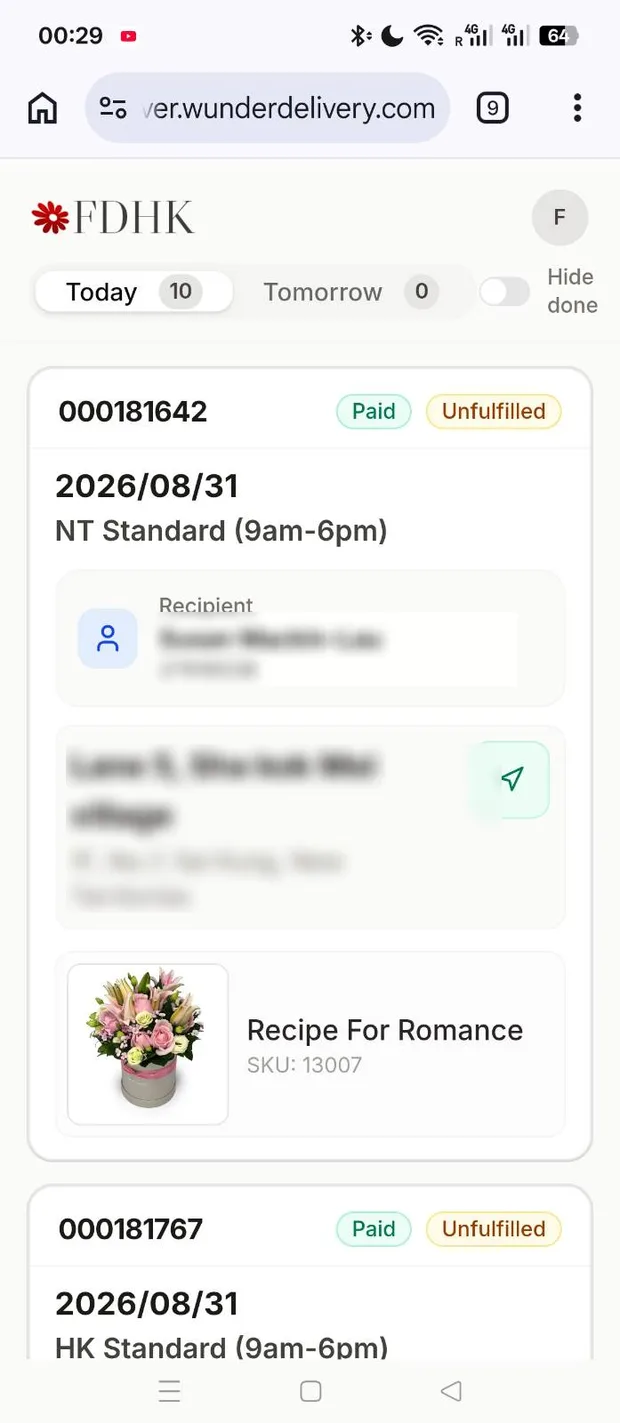
Drivers do not use Shopify and they do not use the main app. They use a small web page built for a phone, at your shop’s own address.
This page is written so you can send it to a driver directly.
Signing in
- Open the address your shop gave you — something like
driver.wunderdelivery.com/bloomandco. Save it to your home screen. - Enter your phone number — the one the shop has on file for you.
- You are sent a code by text. Enter it.
You stay signed in. You should not need to do this every day.
Sign in with the number your shop entered when they set you up, including the country code. If the code never arrives, ask them to check the number on your driver record.
Your orders
You see the deliveries assigned to you, as cards. Today and tomorrow are separate views.
Each card shows what you need: who it goes to, the address, a phone number you can tap to call or open in WhatsApp, and the delivery details.
Other drivers' deliveries, the shop's other orders, customers, prices and everything else in the shop's Shopify account are not visible here. The list is filtered before it reaches your phone.
Completing a delivery
Tap Complete on the card and confirm. That tells the shop the delivery is done and updates their records straight away — nobody has to re-key anything at the end of the day.
When the list refreshes
The list updates itself while the app is open and in front of you. It also refreshes immediately when you:
- open the app
- switch back to it from another app
- reconnect after losing signal
- pull to refresh
- complete a delivery
When the app is not in front of you, it stops checking. That is deliberate — it saves your battery and your data. Bring it back to the front and it catches up immediately.
About location
There is no background tracking and no trail. Your shop sees a single last-known position, recorded the last time you brought the portal to the front. If you have not opened it for an hour, that is how old the position is.
For the shop owner
Drivers who cannot sign in are almost always a wrong phone number or an inactive driver record. See when a driver cannot sign in.
Next
Still stuck? Ask us about this page and we will answer directly.