
Auto Print — printing orders as they arrive
Turn one computer into a print station so new orders print themselves. Includes the behaviours that look broken and are not.
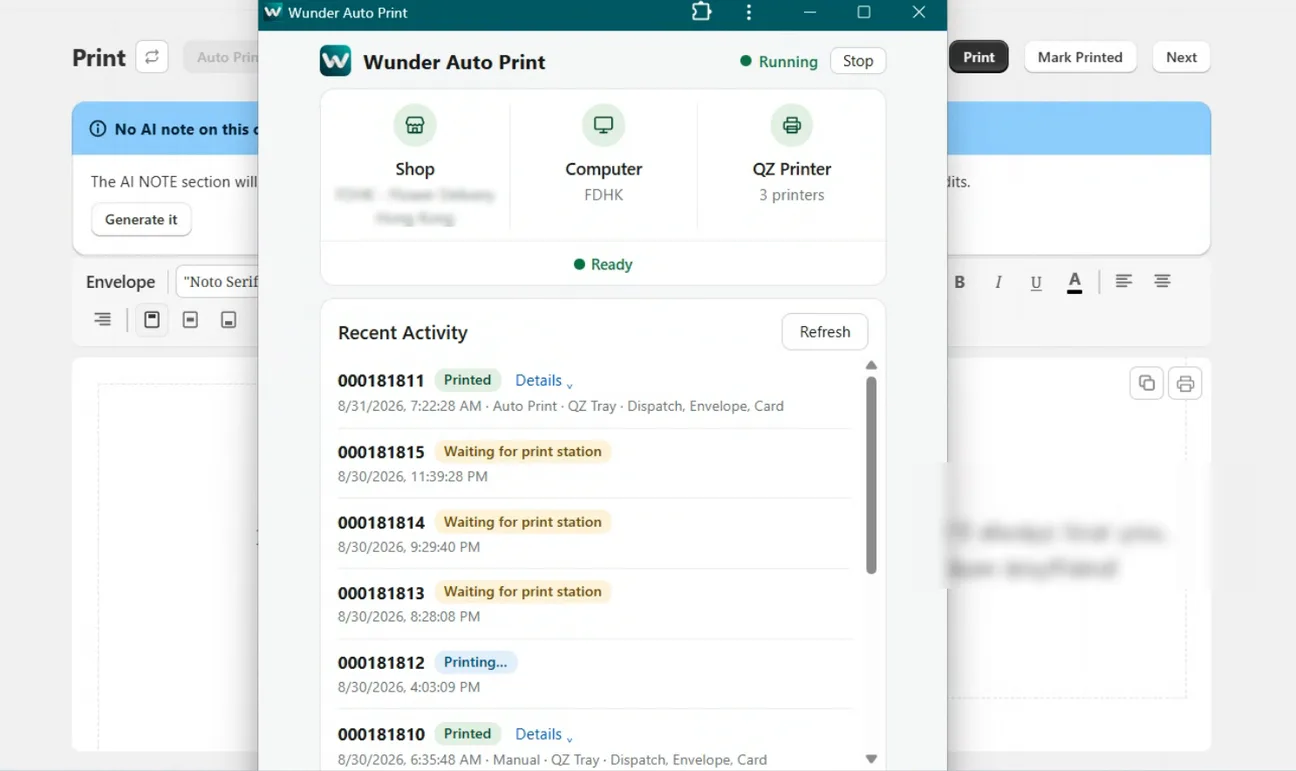
Auto Print turns one computer into an unattended print station. Orders print within seconds of arriving, and get tagged as printed, without anyone clicking anything.
It has more surprising behaviour than any other part of the app, so this article is mostly about that.
What you need first
- The Automate plan or above
- QZ Tray installed and working on the station computer — see setting up QZ Tray
- The silent-printing certificate in place, since an unattended station cannot answer permission prompts
- Chrome or Edge on the station computer
This is the single most common misunderstanding. A shop whose computers are set to PrintNode will get nothing from Auto Print until QZ Tray is running on the station.
But — and this is the trap inside the trap — that does not mean you should change that computer's Print Engine setting. Auto Print runs as a separate application which cannot even read that setting. A computer left on the PrintNode default can be auto-printing perfectly. Changing the engine "so Auto Print works" only changes that machine's manual printing, for no benefit.
Starting the station
- Go to Settings → Print → Auto Print.
- Choose which computer is the station.
- On that computer, click Auto Print.
Auto Print is a separate application that runs at print.wunderdelivery.com. The button hands over to it.
Even on a computer where the app is installed, clicking Auto Print opens a browser tab briefly. That tab is a relay — it hands over to the application and closes itself. Nothing is wrong.
Chrome asks "Open Wunder Auto Print?" the first time. Tick Always allow and it never asks again. That one grant is what makes every later launch click-free.
On a machine that has never run the application, the first launch runs in the browser tab rather than the app window — the page has no record that the app exists there yet. Open Auto Print once from the Start menu after installing, and it behaves from then on.
The same thing happens once after uninstalling: one launch shows an "opening the app" screen. Click Run Auto Print here instead and it corrects itself.
Only one computer per shop
It reads "Auto Print on [name]" instead. This is deliberate: if a second machine could start a station, it would sign the real one out and printing would silently stop where it was supposed to happen.
To move the station, change the designated computer in Settings first.
There is no on/off switch
A shop with a station assigned auto-prints. There is no toggle. “Turning it off” means stopping the station on that computer.
The freshness window
Settings → Print → Auto Print has an Auto Print freshness setting: 1, 2, 6, 12 or 24 hours, defaulting to 24.
It decides how old an order may be and still print automatically. That has a consequence worth thinking about:
If the station computer has been off overnight and your window is 24 hours, everything from the last 24 hours prints when it starts. If that is more paper than you want, shorten the window.
Anything older than the window never auto-prints at all — print it by hand from the Print page. This is deliberate: without it, a shop that piled up orders while it had no station would print its entire history the moment one was assigned.
The station needs to stay open and online
Nothing prints while the internet is down. Orders queue and print when the connection returns. The application deliberately caches nothing — an unattended station left open for days running stale code is a worse failure than a pause.
If you must use Safari or Firefox
There is no installable app and no hand-over on those browsers. That means:
The tab must stay open — it is the station, there is no app window or taskbar icon, and it is easy to close by accident.
Clicking Auto Print again opens another tab rather than focusing the first. The new tab takes over and the old one stops.
Use Chrome or Edge if you possibly can. The installed application avoids all of this.
What gets printed and tagged
Auto Print produces the same documents as manual printing — envelope, card and dispatch sheet — through the same templates, then applies the same printed tag you use manually. There is no separate auto-print tag.
Manual printing stays aware of the queue: if you print an order by hand that was waiting to auto-print, the queued job is settled rather than duplicated.
Watching it work
The dashboard’s Recent activity list shows what printed, with a Retry on failures. The print station’s own screen keeps a longer history if you need to look further back.
Next
Still stuck? Ask us about this page and we will answer directly.