
Invoices and receipts
Print an invoice or email it as a PDF — where the invoice differs from the dispatch sheet, and why printing one never marks an order as dispatched.
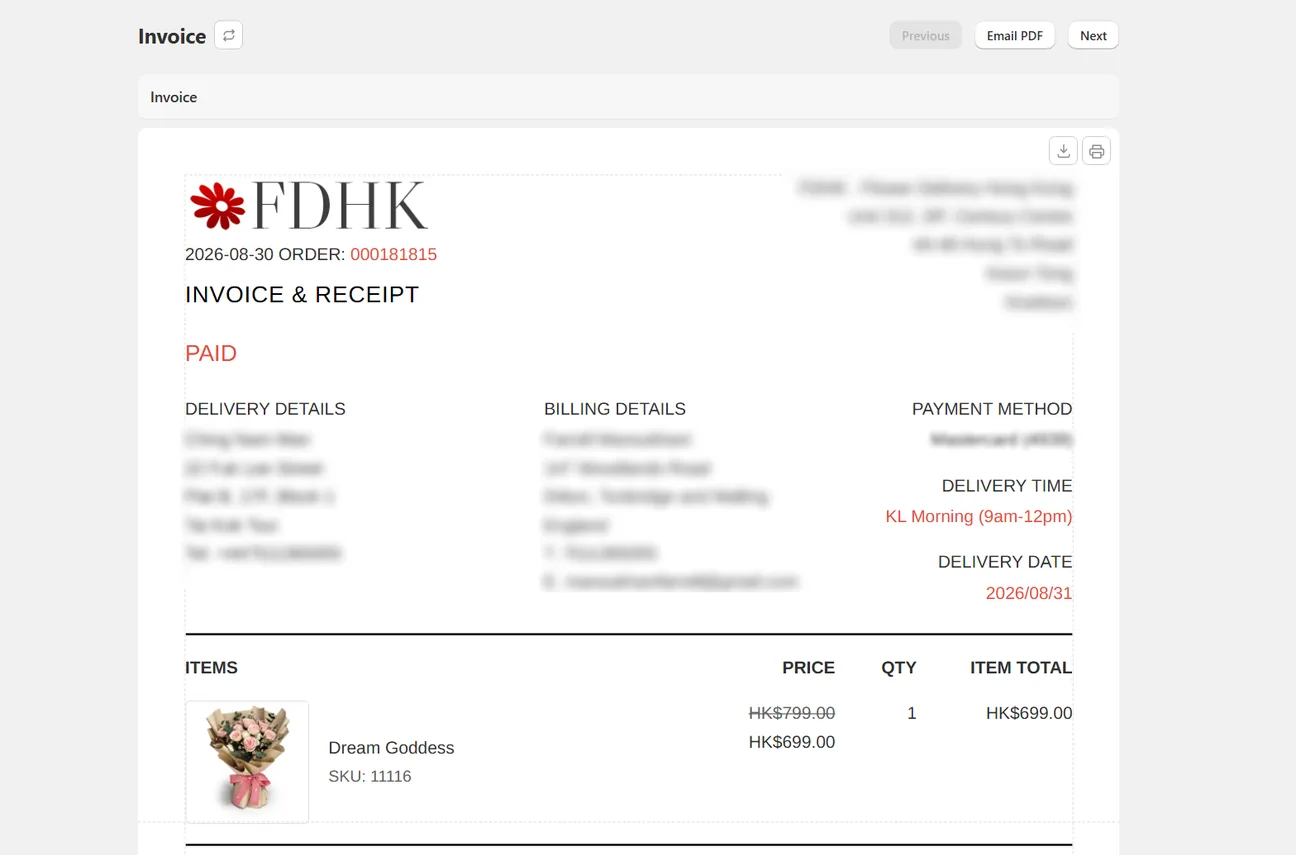
The Invoice page is the print page’s quieter twin. It shows one document — a customer-facing invoice and receipt — and it can email that document as a PDF.
Getting there
Select orders on the Orders page and press Invoice, or open Invoice from the sidebar. It shares the same queue as the print page, so orders you selected appear on both.
The toolbar carries the position counter, Previous, Next, and Email PDF.
What the invoice contains
It is a receipt, not a packing slip. It shows your logo and store address, the payment status, a billing details block with the billing address and the customer’s email, the priced line items with quantities and totals, and your footer.
It deliberately does not show the gift message, the recipient address below a cut line, or the driver QR code. Those belong on the documents your team and your driver handle, not on the document your customer reads.
The invoice no longer mirrors the dispatch sheet. It has a standalone default, edited in Settings → Print → Invoice, and Reset there restores the invoice default rather than the dispatch one.
Printing an invoice
Printing happens only from the printer icon inside the paper preview. It goes through whichever print engine that computer uses, on the printer you assigned to the dispatch document.
No printed tag is applied, and there is no reprint confirmation. Printing a customer's invoice must not tell your team the order has been dispatched. The queue also does not advance by itself — use Previous and Next.
Emailing the PDF
Press Email PDF. The customer’s email address is filled in for you. You can send to up to three addresses, separated by commas. Leave it empty and it goes to the store owner’s email.
The PDF matches what is on screen exactly.
The sender name your customer sees is your Shopify store name, so a customer of Bloom & Co sees the invoice as coming from Bloom & Co. Replies come back to you. The underlying sending address is ours, which is why you do not have to configure any DNS records of your own.
Next
Still stuck? Ask us about this page and we will answer directly.