
QZ Tray says Disconnected in Chrome or Edge
QZ Tray is running, but Wunder Delivery says Disconnected or "QZ Tray is not running". Usually one browser permission called Apps on device is blocked. How to allow it in Chrome and Edge.
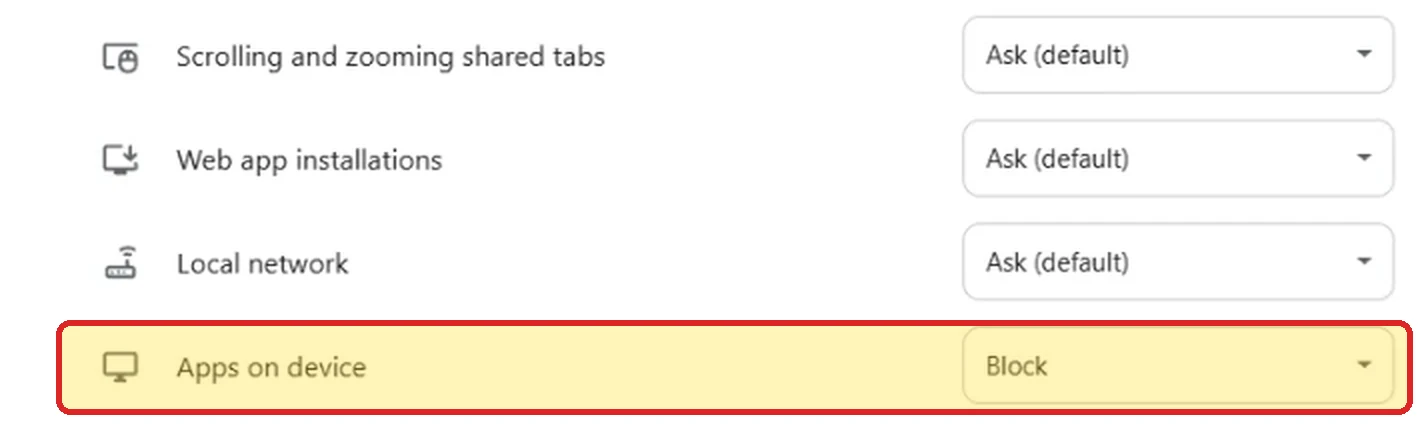
QZ Tray is running on your computer, but Settings → Print in Wunder Delivery says Disconnected, and the message says QZ Tray is not running.
QZ Tray is probably fine. Your browser is most likely stopping the page from reaching it. It can work in one browser and not another on the same computer, because each browser keeps its own permissions.
Why it happens
QZ Tray is an app on your computer, and Wunder Delivery is a web page. Chrome and Edge ask for your permission before a web page can talk to an app on the same computer.
Both call this permission Apps on device. It is the last row on the browser’s site settings page, as highlighted above. It is a separate setting from Local network, the row just above it, so allowing Local network does not fix it.
If Apps on device is set to Block, the page cannot reach QZ Tray at all. It cannot tell a blocked connection from a closed program, so it says QZ Tray is not running.
Allow it
Your browser may show a box saying admin.shopify.com wants to access other apps and services on this device. Click Allow. The box only shows on the tab in front, so stay on the Settings → Print tab while it connects. Clicking Block there is what sets the row above to Block.
If it does not ask, set it by hand:
-
Paste the address for your browser into the address bar and press Enter.
Chrome:
chrome://settings/content/siteDetails?site=https%3A%2F%2Fadmin.shopify.comEdge:
edge://settings/privacy/sitePermissions/allSites/siteDetails?site=https%3A%2F%2Fadmin.shopify.com -
Scroll to the bottom of the page.
-
Change Apps on device to Allow.
-
Go back to Settings → Print in Wunder Delivery and reload the page.
-
Click Refresh printers.
The status should change to Connected.
Wunder Delivery inside Shopify runs on admin.shopify.com. Auto Print's window runs on print.wunderdelivery.com. Allowing one address does not allow the other, so a computer running Auto Print needs both. For Auto Print's window, replace the address at the end of the link above with https%3A%2F%2Fprint.wunderdelivery.com. If you open Wunder Delivery outside Shopify's admin, on app.wunderdelivery.com, use that address in the same way.
If it still says Disconnected
- Check QZ Tray is really running. Look for its icon in the system tray. If it is not there, start it and click Refresh printers again.
- Use a normal browser window. We have seen an Edge InPrivate window stay Disconnected on a computer with this permission blocked.
- Try the same page in your other browser. If it connects there, QZ Tray and your printer are fine, and the permission in the first browser is the problem.
- Check security software. Antivirus or web-filtering software can also block the connection.
For anything else, see Set up QZ Tray and Print problems.
Next
Still stuck? Ask us about this page and we will answer directly.