
The Auto Print window says Not linked
You pressed Auto Print and the window that opened says Not linked, while a browser tab is printing fine. Usually the app was installed from a different browser. How to check and fix it.
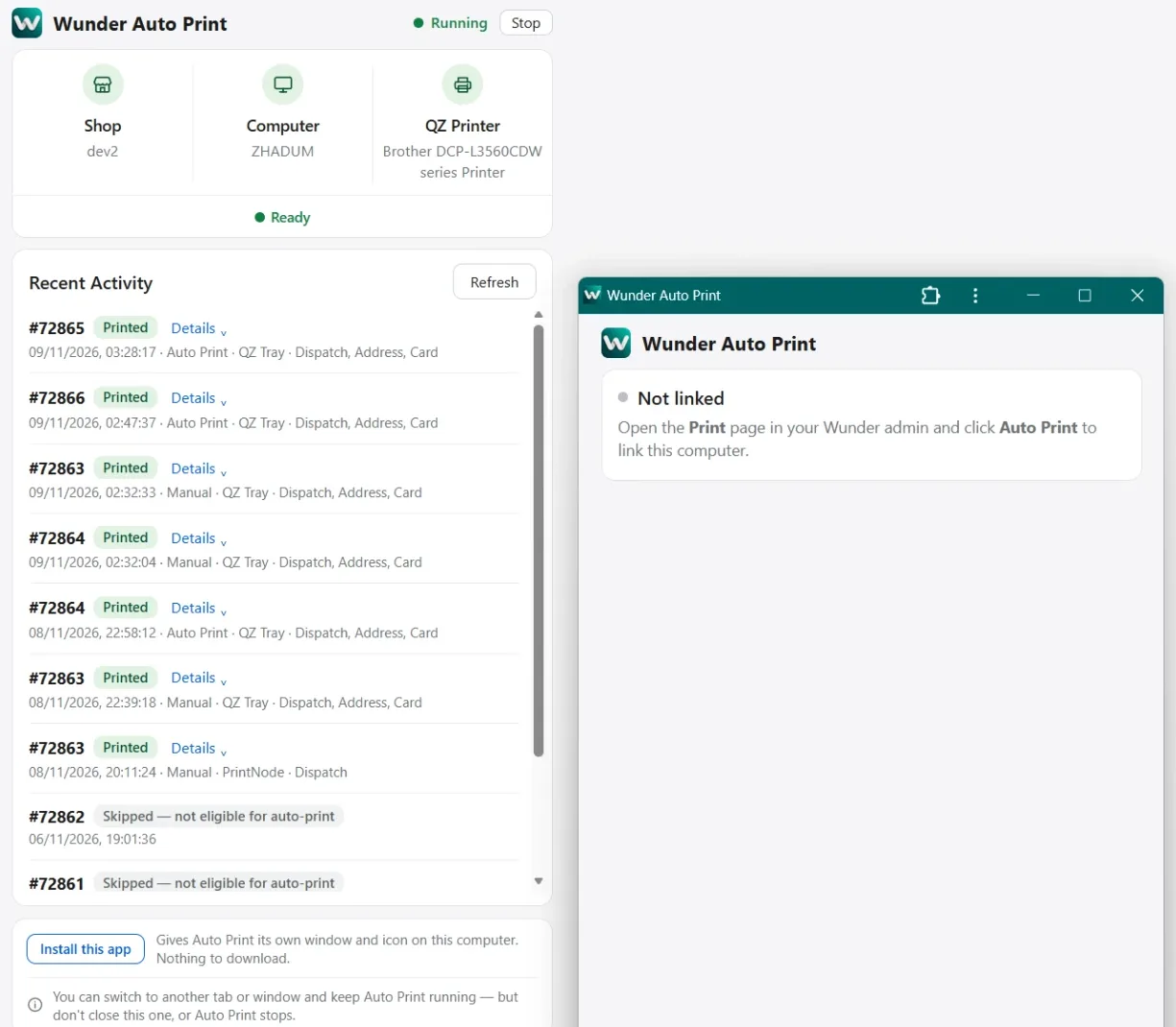
You press Auto Print on the Print page and a small Wunder Auto Print window opens. It says Not linked and stays that way, however many times you press the button. A browser tab may open as well, and that one works.
Nothing is wrong with your shop or your settings. The window that opened is most likely a copy of the app installed from a different browser from the one you use for Shopify.
Why it happens
The link between a computer and your shop is saved inside the browser. Each browser keeps its own saved data, and so does each profile inside a browser. Chrome cannot see what Edge saved, and one Edge profile cannot see another’s.
So if you installed the Auto Print app from Chrome some time ago, and you now use Shopify in Edge:
- You press Auto Print in Edge, and the link is saved in Edge.
- Windows opens the installed app, which belongs to Chrome.
- Chrome’s copy has no link, so it says Not linked.
- After about a minute the Print page gives up waiting and opens Auto Print in a tab in Edge. That tab has the link, so it works.
The same thing happens the other way round, and between two profiles of the same browser.
How to tell
Look at the working tab. If it shows an Install this app button near the bottom, as in the picture above, the app is not installed in the browser you are using. The window that keeps opening comes from somewhere else.
You can also list each browser’s installed apps. Paste the address into the address bar and press Enter:
- Chrome:
chrome://apps - Edge:
edge://apps
Wunder Auto Print should be listed in one browser only: the one you use for Shopify. An icon shown in grey in Chrome is not installed on this computer and can be left alone.
Fix it
- In the browser you do not use for Shopify, open its apps page from the list above. Right-click Wunder Auto Print and choose Uninstall or Remove.
- In the browser you do use for Shopify, open the working Auto Print tab and click Install this app.
- Close that tab. Go to the Print page and press Auto Print.
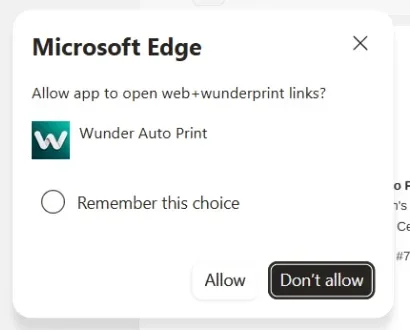
Your browser may ask whether the app may open links, as below. Click Allow. Tick Remember this choice first if you do not want to be asked each time.
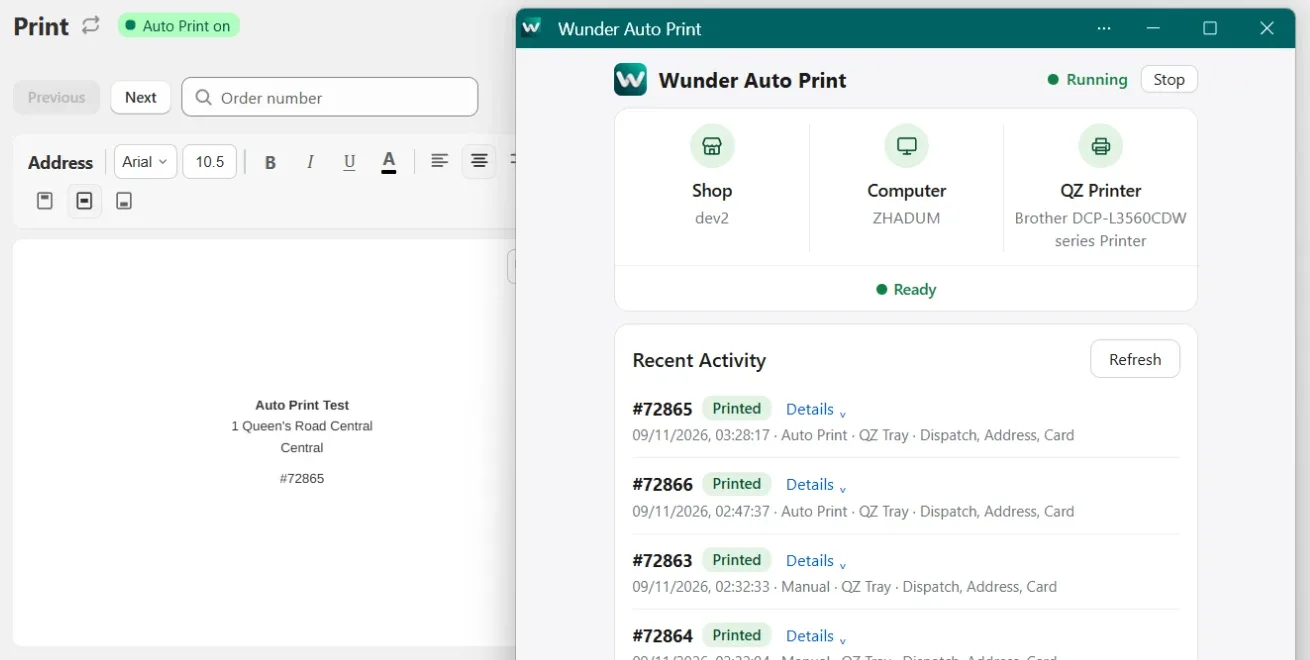
The window that opens now shows your shop, this computer and your printer, and says Running. The Print page says Auto Print on.
If you only waited a few seconds
A window that says Not linked straight after you press Auto Print is normal. A new link is sent within a minute, and the Print page tells you so. This article is for a window that is still not linked after that.
You do not have to install the app
Auto Print works in a browser tab too. Keep that tab open, because closing it stops Auto Print. The installed app only gives it its own window and icon, so it is harder to close by accident.
Next
Still stuck? Ask us about this page and we will answer directly.