
The Delivery Action Centre
The dashboard you open each morning — what each card counts, where every button takes you, and why a filter sometimes disappears when you change day.
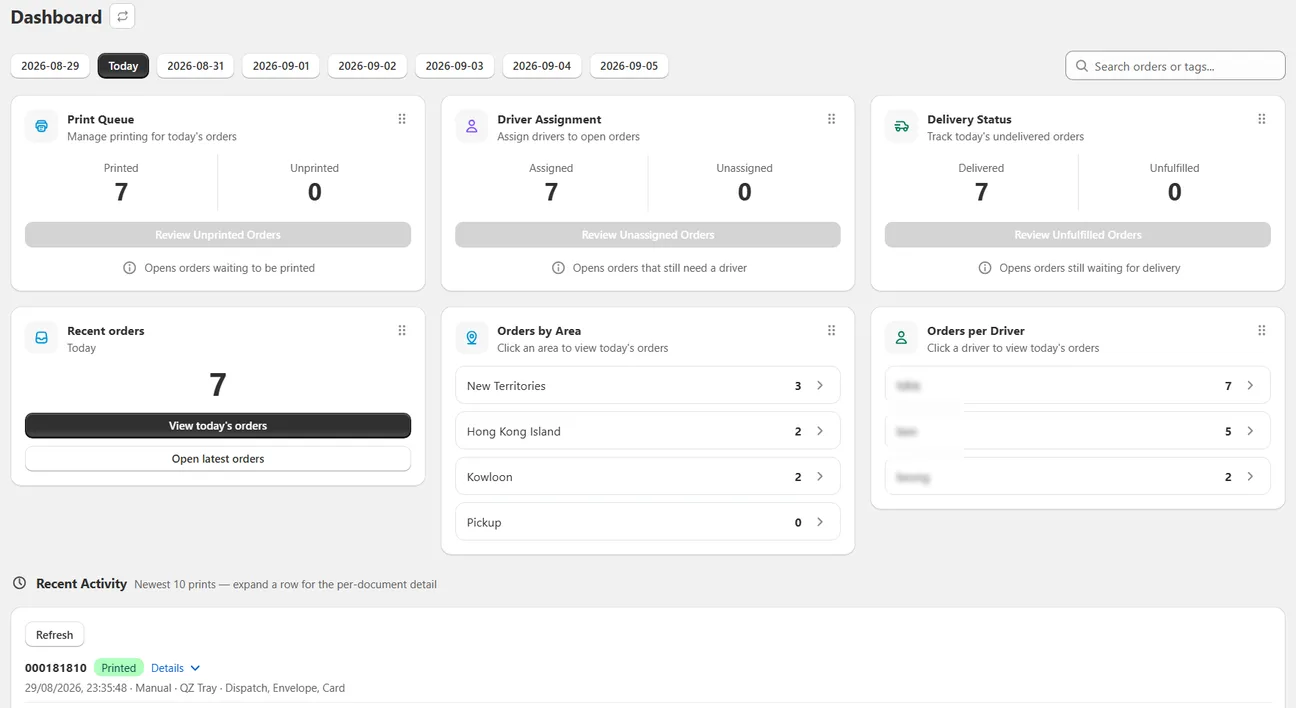
The Action Centre is the home screen of Wunder Delivery. It answers one question: what still needs doing for this day?
The date strip
Everything on the page is scoped to one day, chosen from the chips across the top — yesterday, today, and the days ahead. Essential shows three days; Growth and above show seven.
Change the day and every card re-reads. Nothing on this page shows “all orders” except where it says so explicitly.
The three action cards
Print queue counts orders for the day that have not been printed. Review unprinted orders opens the print page with exactly those orders queued.
Driver assignment counts orders with no driver tag. Review unassigned orders opens the order list filtered to them.
It takes you to the list of unassigned orders — it does not assign anybody. Assignment happens on the Orders page, by adding the driver's tag. The card is a way of finding the work, not of doing it.
Delivery status counts orders that are still unfulfilled. Review unfulfilled orders opens them in the order list. This is the number that should fall to zero as your drivers work through the afternoon.
Order overview
Orders shows the day’s total, with View orders for that day and Open latest orders.
It shows your newest orders regardless of delivery date — useful when you are looking for something that just came in and you do not know which day it is for. Every other button on the page respects the selected day.
Orders by area groups the day’s deliveries by region, and Orders per driver by driver. Both are clickable and open the order list already filtered.
An order can carry two driver tags, in which case it genuinely belongs to both rounds and is counted in both rows. The day's total counts orders, not assignments, so the two numbers are both right and will not always reconcile.
Recent activity
The ten most recent print events for the store — every print, from any computer, manual or automatic. Each row shows the order number, what happened, and when. Failures carry a Retry.
The dashboard deliberately shows only prints, and only the latest ten. If you need to go further back, the print station's own screen keeps a longer list.
Rearranging the cards
Drag any card to move it. Your layout is remembered.
Because you can move a card above the date chips, no card relies on a heading to say which day it means — each one prints its own date line. When a count looks wrong, read that line first. Mis-staffing a day usually starts with reading a number as "today" when it was not.
Searching from here
The search box matches a whole tag or an order number. You can type the order number with or without leading zeros and with or without the #.
Searching for an order number widens the search beyond the selected day, so you can find an order without knowing its delivery date. Clearing the search puts the day back.
When a filter disappears
If you arrive on the Orders page from Review unassigned orders and then pick a different day, the "unassigned" filter is removed rather than carried across.
This is deliberate. There is no control on the Orders page that creates that filter, so if it rode along with you and you removed it, you would have no way to get it back — and no way to explain what you were looking at. Filters you *can* recreate, like a driver tag, do survive a day change.
Keeping up to date
New orders reach this page on their own — you do not need to reload. There is also a small refresh icon beside the page title if you suspect the screen is stale. It runs the same quick check; it is not a browser reload.
Next
Still stuck? Ask us about this page and we will answer directly.